Draft optical models. The simulation approximates a typical eye and has not yet been validated with people who have these eyesight conditions. Use it to explore and compare designs, but don't rely on it as proof of accessibility or for medical decisions. How it will be tested
in
Intro
Test your product against aging eyesight
Click a bar to go back or forward · Esc or × to close
Please use a computer
Eyesight Sim shows products at their real size, as seen from a real distance. A phone screen is too small for that, so the simulation can't be judged here.
For many older people the TV is one of the last sources of entertainment, news and company they can still control on their own. When they can no longer read the remote, they lose that too.
The problem
Eyesight declines with age: presbyopia sets in during our forties and by our sixties nobody can focus on a remote held in the hand. Add dementia, tremors or arthritis and a cable remote with fifty small, grey, low-contrast keys becomes a wall. The result is a loss of self-sufficiency over one of the most basic things in a day.
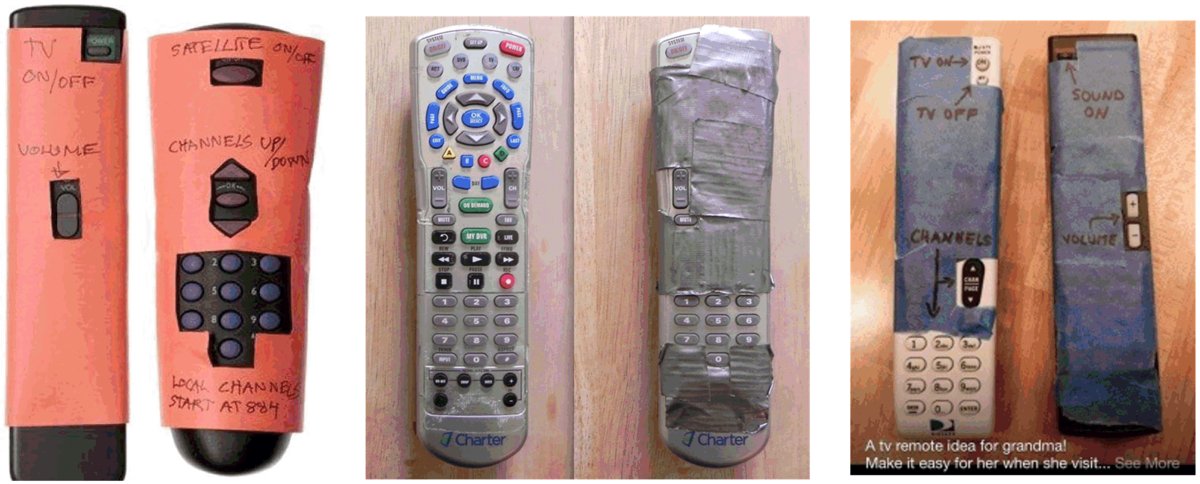
Families notice, and they improvise. These are real solutions people have posted online:
Paper sleeves, duct tape and hand-written labels: covering every key except power, volume and channel.
Every one of these is an act of love, and every one is a sign that the product failed the person holding it.
What better design gives back
A better remote does not cure anything, but it can extend the years someone can run their own TV — and the better the design, the longer that extension. That means:
Entertainment they can still choose for themselves.
A connection to the world through the news.
Independence and dignity — not having to call someone to turn up the volume.
Who it is for
Products should be defined for specific groups (pending research), for example:
Early presbyopia
Moderate presbyopia
Dementia and presbyopia
It is a large and growing group, in homes and in nursing homes and hospitals.
A simple test
Before a product ships, hand it to a parent or grandparent. If you can't, use the simulator: pick your product, choose Age 70, and hold it at arm's length.
What exists today, what goes wrong in practice, and the requirements a better remote should meet.
Existing products
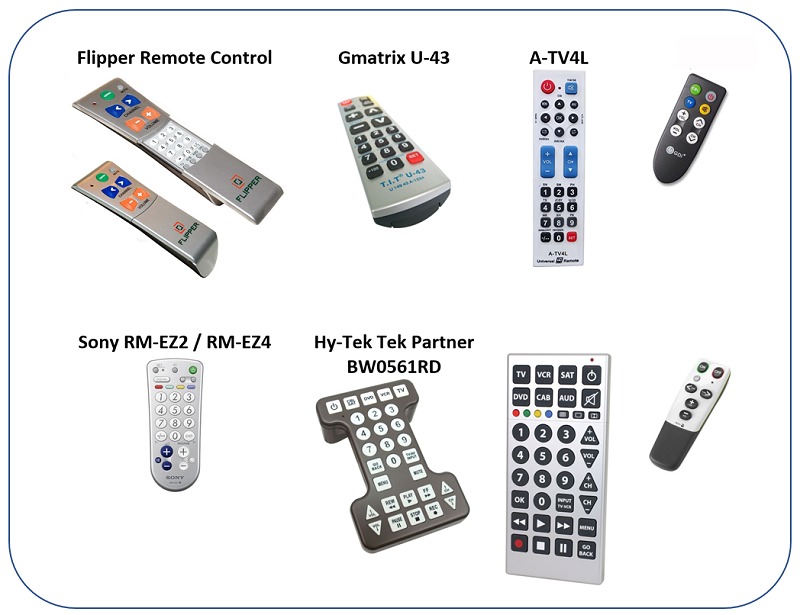
Several products try to address the problem, but fall short in many categories.
Based on observations with my own grandparents, the Flipper remote is currently the best available option. Most of these remotes are in the simulator's product list, so you can compare them side by side.
Observations and requirements
Disability
Observation & impact
Design requirement
Vision
Cannot tell the buttons apart. Holds the remote in reverse.
Very large keys and print.
Raised keys that can be felt.
Colour-coded by function (power, volume, channels).
Possibly different key shapes per function.
Holds the remote facing the wrong direction.
Use shape and colour to make front and back obvious — even make it uncomfortable to hold the wrong way.
Motor skills
With slow-reacting TVs, can't tell whether a key was pressed, so presses it twice.
Mechanical tactile feedback on keys.
Enough space between keys.
An LED that clearly shows the remote sent something.
The TV takes a long time to turn on, so power is pressed again. Confusion between the TV's and the cable box's on/off.
Separate ON and OFF buttons. Most TVs support these IR codes. Programmable to switch the TV and cable box together, or the TV only.
Points the remote too low (below the coffee table), so the IR never reaches the TV.
Powerful, wide-angle IR emitter that reaches the TV at any angle.
Misc.
Which keys to include.
Leave out every unnecessary key.
For more advanced decline the ten number keys make the remote harder to use. Ideally offer two versions, with and without number keys (a sliding cover, as on the Flipper, is a poor solution).
Programming.
The programming key is recessed so it can't be pressed by accident.
Suggested design
Two versions of the same remote:
With numbers — separate OFF / ON, volume +/−, channel up/down, a 0–9 keypad and a recessed PROG key.
Without numbers — only OFF / ON, volume and channel, with even larger keys.
Keys are large, colour-coded by function (red off, green on, orange volume, blue channels), and spaced for unsteady hands.
If the shape of the remote changes, left- and right-handed use has to be considered.
Open Letter
To the people who design our remotes
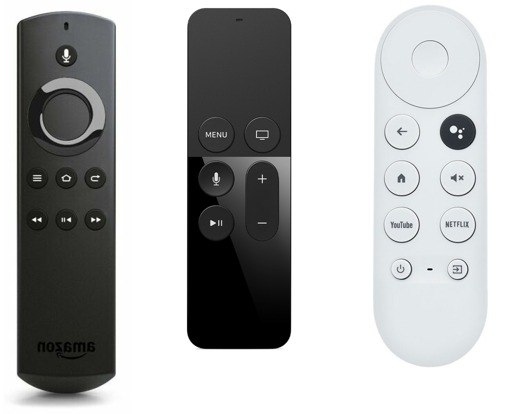
To product teams at Apple, Amazon and Google, to TV manufacturers, and to cable providers.
My grandparents spend a good part of every day in front of the TV. It brings them the news, their shows, and a sense that the day has some shape. And more and more often, they can't work the remote.
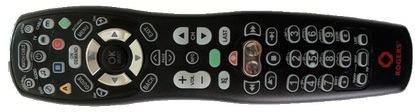
The cable remote in their living room has more than fifty keys. Most are small, grey on grey, and labelled in type that nobody over sixty can read at arm's length. One wrong press and they are somewhere they can't get back from, until someone visits.
I mean… really? Why don't cable providers and TV manufacturers offer a simplified remote for this group? It is not a niche. It is everyone's parents, and eventually all of us.
The newest streaming remotes have fewer keys, which is a step forward. But look closer: dark icons on a black remote, white icons on a white one, glossy surfaces with no tactile landmarks, and buttons whose meaning depends on what's on the screen. For an eye that can no longer focus up close, they are close to blank.
So I'd like to ask a simple question:
Do you test your remotes with your own parents and grandparents?
Some things that would help:
Offer a simplified remote — power, volume, channels — with large, high-contrast, tactile keys, as a standard option, not a third-party accessory.
Test with older eyes. Look at the product the way a 70-year-old sees it at arm's length. This site's simulator is free for exactly that.
Separate ON and OFF, and make it obvious that a key press was received.
Publish your IR codes and support universal simplified remotes, so others can fill the gap.
None of this is hard. It only needs someone in the room to remember who is on the other end of the product.
— Ziv
About
See your product through older eyes
Eyesight Sim is a free tool for product accessibility testing. It shows a remote control, an app screen or a label the way people with presbyopia, myopia, hyperopia or astigmatism see it — at real size, from a real distance.
Presbyopia, the loss of near focus that comes with age, affects nearly everyone over 50. Yet most products are designed and reviewed by people who can still read small grey type at arm's length. This tool closes that gap in a few seconds, before anything ships.
Who it is for
Product designers
Test concepts early, compare designs side by side, and catch unreadable labels before production.
Families & caregivers
Understand what a parent actually sees, and choose products and settings that still work for them.
Researchers
Compare five optical simulation models against what people with real eyesight conditions report.
How it works, in short
An eye model turns age, prescription, glasses, pupil size and distance into the defocus left over after the eye has focused as hard as it can. That defocus becomes a blur on the product itself, in millimetres, which is then drawn at true size on your screen. The details, formulas and references are in Help → README & references.
Eyesight Sim is not a medical tool. It approximates a typical eye; individual eyes vary.
How to use
Five steps to a fair test
Pick a product. Click Select above the product. Choose a Remote Control, a Mobile UI (a sample screen or your own web address, on a phone size you choose), or Upload a Product photo and give its real size.
Set the distance. How far from the eyes is it used? A remote in the hand is about 45 cm, a phone 30 cm, a wall sign 3 m.
Choose the eyesight. Start with the Simplified presets (Age 50, 60, 70 …). Use Advanced for a real prescription, glasses or pupil size.
Compare. Press + to put several products side by side under the same eyesight, or tick Show original beside.
Check the scale. The rulers show real inches or centimetres. If they don't match a real ruler on your screen, adjust Scale (bottom right) until they do.
Tips
Ctrl + Shift + scroll over the products changes their scale; over the top bar or the left panel it resizes just that area.
Every section has a ? button with a short explanation.
The Simulation tab lets you switch between five optical models. Geometric PSF is a good default.
Play intro in the top bar runs a short guided tour of these steps.
Several products side by side under the same eyesight
Remote controls, uploaded photos with crop and real size
Mobile UI: sample screens or a live web page, on nine real phone sizes
Five optical simulation models, including ghosting / double vision
A one-page website — no install, no account
Next
Same product at different distances or eyesight, side by side
Population-average presets (e.g. "average 70-year-old") with sources
Cataract contrast loss and glare, glaucoma, AMD
Share settings with a link
Example uses
Presbyopia
Remote controls, mobile apps, packaging, medicine labels, appliance displays.
Myopia
Street, building and elevator signs, ads, screens viewed from across a room.
Non-profit. Working with eye-care specialists and researchers will keep the simulation accurate.
Optical Models Accuracy
How accurate is it — and how it gets better
The simulation rests on published optics, but only people with real eyesight conditions can tell us whether it looks right. Accuracy will be tested with them, and improved over time.
Where it stands today
The eye model uses well-established formulas: focusing range by age (Hofstetter, Anderson), pupil size (Winn), blur from defocus (Strasburger, Bach & Heinrich) and power vectors for astigmatism (Thibos). It describes a typical eye. Real eyes differ in pupil size, higher-order aberrations, contrast sensitivity, cataract and glare, and five rendering models show the same blur in different ways. So the question is not only "is the maths right?" but "does it match what people see?".
How it will be validated
Side-by-side comparison. People with known eyesight (presbyopia, myopia, astigmatism, early cataract), ideally with a recent prescription, hold a real product at a set distance and compare it with the app showing the same product, distance and prescription.
Match, not guess. They adjust the app until it looks like what they see: which model, how much blur, ghosting or not. The difference between their setting and the prescription is the error.
Many people, many conditions. Results are collected across ages and conditions, with the help of optometrists and vision researchers, to find where each model is right and where it drifts.
How it improves
Tuning values — defaults such as blur strength, pupil size by age, ghosting separation and the age presets are adjusted to match what people report.
Improving the models — where tuning is not enough, the libraries themselves improve: for example population-average aberrations, cataract straylight and contrast loss, or a second focal point for multifocal lenses.
Publishing the results — what was tested, with whom, and how close each model came.
Open source
The optical libraries — the eye model and the five rendering models — will be released as open source, so the testing, the data and the improvements can be checked and continued by anyone. More about open source →
Would you like to take part in testing, or help as an eye-care professional? Get in touch.
Open Source
Built to be continued by others
The optical simulation models will be released as open source, so anyone can check them, improve them, and carry the project forward.
What will be released
The eye model — refraction, accommodation by age, glasses, pupil size and the blur it produces.
The five optical simulation models — CSS, SVG, geometric PSF, wavefront / diffraction PSF and ghosting, including the WebGL convolution engine.
The documentation — formulas, assumptions and references.
Why
An accessibility tool is only useful if people trust it. Open models can be reviewed by optometrists and vision scientists, tested against real patients, and extended with conditions this version does not cover. And the project should not depend on one person to keep going.
How to help
Compare the models with what you or your patients actually see, and report the differences.
Translate, add products, or use the models in your own design tools.
The repository and licence will be announced here.
Privacy
Nothing leaves your browser
Eyesight Sim has no accounts, no logins, no cookies and no tracking.
Settings (eyesight, distance, products, scale) are saved only in your own browser, so they are there next time. Reset settings in the left panel clears them.
Uploaded photos are processed on your computer and never sent to a server. If you tick Save this to my browser cache, they are kept in your browser only; delete them from the picker at any time.
Web addresses you test in the Mobile UI tab are loaded directly by your browser, as if you had opened them yourself. We don't see or store them.
No analytics, no ads, no third-party scripts. The site is static files served by Cloudflare, which keeps standard server logs.
Questions about privacy? Get in touch.
Eyesight Sim shows a product the way a given eye sees it, at its real size and from a real distance.
Select a product above the picture (remote, mobile UI, or your own photo).
Set the distance and the eyesight in the left panel.
Press + to compare several products under the same eyesight.
Shortcuts
Ctrl + Shift + scroll over the products: change their scale.
Ctrl + Shift + scroll over the top bar or the left panel: make just that area larger or smaller. Double-click its edge handle (the ‹ button) to reset the panel.
Esc closes dialogs and stops the intro.
Settings are remembered in this browser. Reset settings at the bottom of the left panel starts fresh.
The distance between the eyes and the product. The figure shows the arm needed to hold it there; beyond arm's reach the product moves away (a table, a wall).
Distance matters twice: closer objects need more focusing power, and they look larger. For a presbyope with no focusing left, the blur on the product stays the same at every distance — only its apparent size changes.
The presets are typical viewing distances: phone 30 cm, remote in hand 45 cm, laptop 60 cm, desk monitor 75 cm, appliance 1.5 m, sign or TV 3 m.
Simplified
One-click presets. No glasses are worn in these presets. Note: at 45 cm an average 50-year-old can still just focus, so blur first appears around age 60.
Advanced
Age & presbyopia model
How much the eye can still focus (accommodation amplitude) at each age. Hofstetter's average, minimum and maximum formulas, or an objective sigmoid fit (Anderson 2008).
Override amplitude
Type a measured amplitude in dioptres to replace the model.
Sphere
Myopia (−, near-sighted) or hyperopia (+, far-sighted), in dioptres.
Cylinder & axis
Astigmatism in minus-cylinder form, as written on a prescription (e.g. −2.00 × 180). The blur stretches along one direction.
Glasses / contacts
None, full distance prescription, distance plus a reading add (bifocal / progressive near zone), or over-the-counter readers.
Pupil & lighting
A larger pupil means more blur. Auto estimates it from age and lighting (Winn 1994); smaller in bright light and in older eyes.
Depth of focus
Small amounts of defocus go unnoticed: blur below about 3 arcmin of visual angle (≈ 0.2–0.3 D for a typical pupil) looks sharp. This is why a presbyope still sees the TV across the room clearly. Set it to 0 for pure geometric optics.
Accommodative lag
Real eyes focus slightly less than needed for near objects; typical lag is 0.25–0.75 D.
The coloured line explains in plain words whether the product is in focus and why — and what would bring it into focus.
Object vergence
Focusing demand of the distance: 1 / distance in metres.
Accommodation amplitude / used
How much focusing the eye has, and how much it uses here.
Residual defocus
What is left over, per astigmatic meridian. This is what blurs the image.
Blur disc
Pupil × defocus, as an angle at the eye and as a size on the product.
Estimated acuity
Blendowske's fit VA ≈ 1 / (1 + defocus²), and the smallest letter that can still be read at this distance.
Five interchangeable ways of turning the eye model into a picture. They all use the same blur size; they differ in the shape of the blur (the point-spread function, PSF). Compare them with what people with real eyesight issues report.
Mobile UI
Screenshots are processed exactly like product photos, with whichever model is selected, and shown inside the phone's screen.
Live web pages can only get a round (CSS) blur of the same size: a browser never lets one website read or process another website's pixels. For astigmatism, ghosting or the full disc-shaped blur, use a screenshot of the page.
Each product has Select (choose another) and × (remove). + adds one more; all share the same eyesight, distance and model.
Remote Controls
Photos of real remotes with their approximate real height. Photos taken at an angle are scaled by their apparent height only.
Upload a Product
Choose a photo, drag a box over the product, and type its real width or height — that is what makes the simulation true to scale. Tick Save this to my browser cache to keep it; uploads stay in this browser only and can be edited or deleted from the picker.
Shows a phone screen at its true size, with a web page inside.
Sample screens are real screenshots, or pages drawn at an exact font size (12, 16, 20 px …) so you can see what a font size really does.
Your project URL loads a live page in an iframe. The iframe gets the phone's CSS width, so responsive sites show their mobile layout. Browsers do not allow a page to change the "user agent" an iframe sends, so if your site serves mobile pages by device detection, use its mobile address (e.g. m.domain.com).
Many websites refuse to be shown inside another site (X-Frame-Options / Content-Security-Policy). If the screen stays blank or shows an error, speak to your IT team about allowing this site, or use a screenshot instead.
Phone sizes are marketed diagonals. Scale applies to the screen inside the frame, so 6.1″ is exactly 6.1″ corner to corner at scale ×1. Change the size from the dropdown under the title.
There is no monitor calibration. Products are drawn at the CSS standard of 96 pixels per inch, multiplied by Scale. On most laptops that is within a few percent of real size, and between products it is always exact.
To check: hold a real ruler against the screen rulers (bottom and right). If they differ, move Scale until they match. 1:1 or a double-click on the slider resets it. Ctrl + Shift + scroll over the products does the same.
in / cm switches the units of the rulers and of every size and distance in the app.
The blur is computed on the product in millimetres, so it never depends on how large the picture is drawn.
Check with a bank card
Every bank or credit card is the same size (ISO/IEC 7810 ID-1: 85.60 × 53.98 mm). Hold a real card against this one. If they differ, change Scale — this card resizes with it, together with the rulers.